Working a visit on your phone
Technician · 5 steps
The office has put you on a job. You see it in My day with the address, the way in and what the customer said, tell the office when you get there, add a photo of the work, and mark it done.
1. Sign in
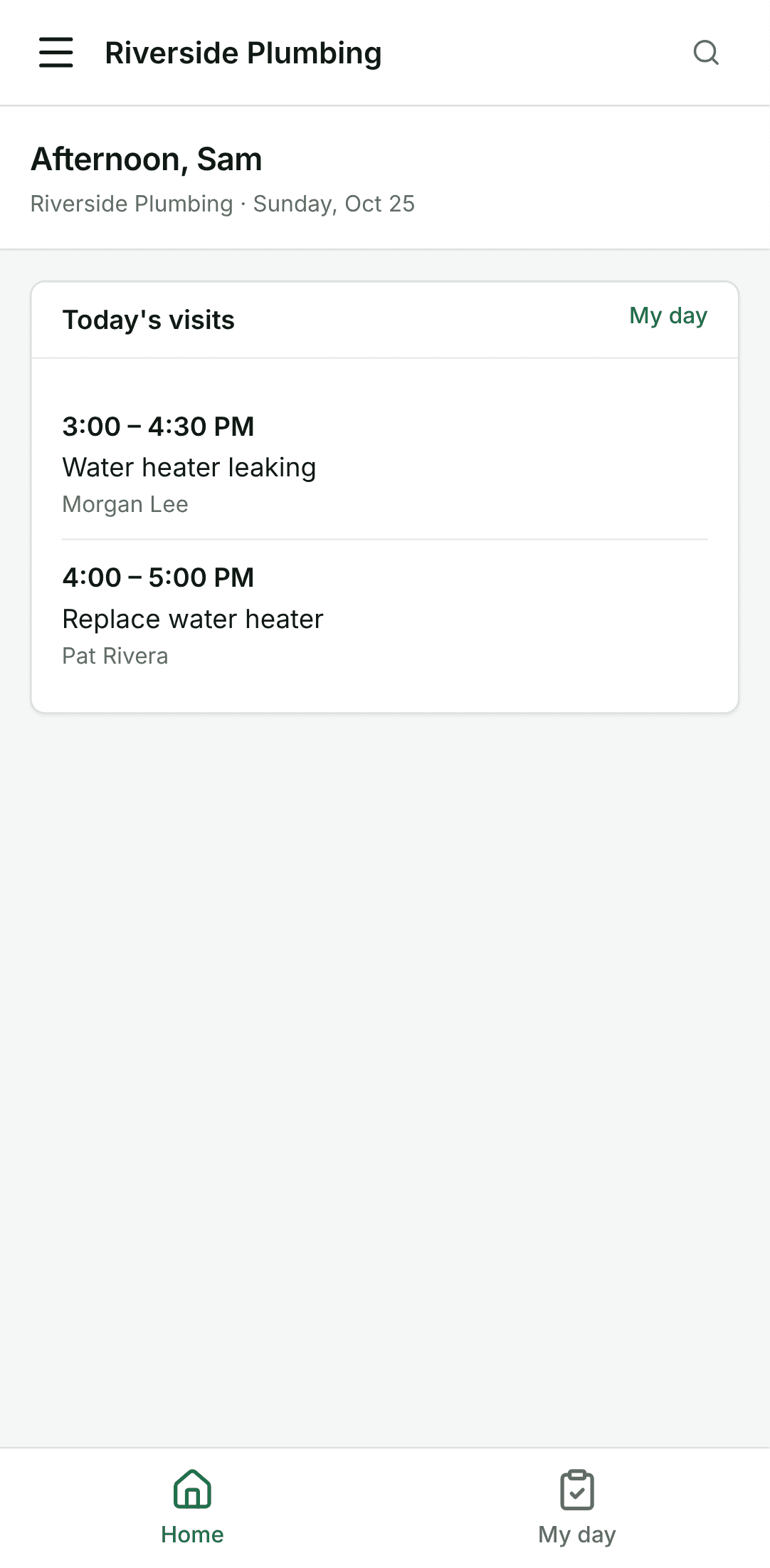
Open the app and sign in with the email and password from your invite. You land on Home.
2. Open My day
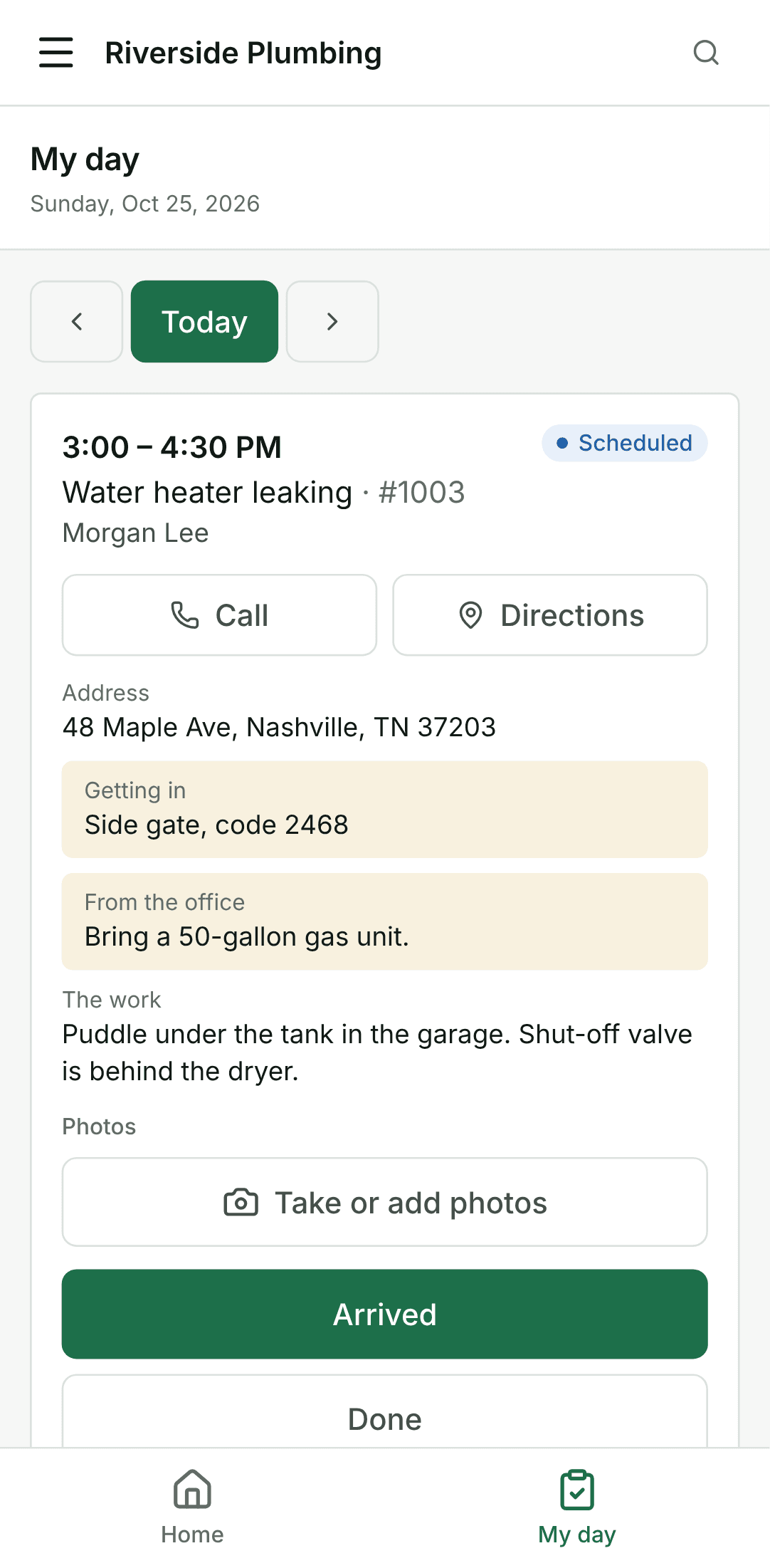
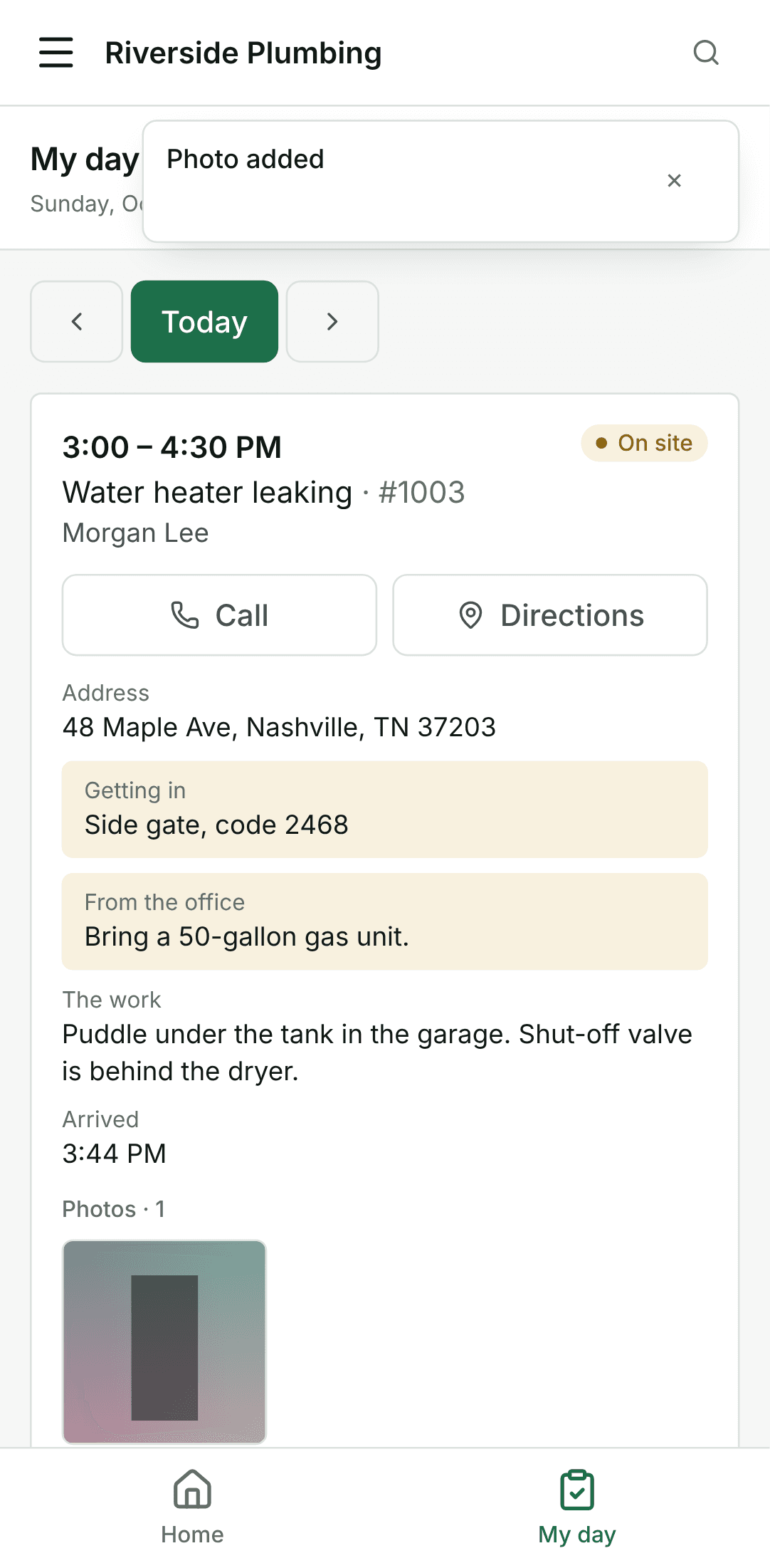
Tap My day. Today's visits are in order, each with the time, the customer, the address and how to get in. Call rings the customer; Directions opens your maps app.
3. Tell the office you have arrived
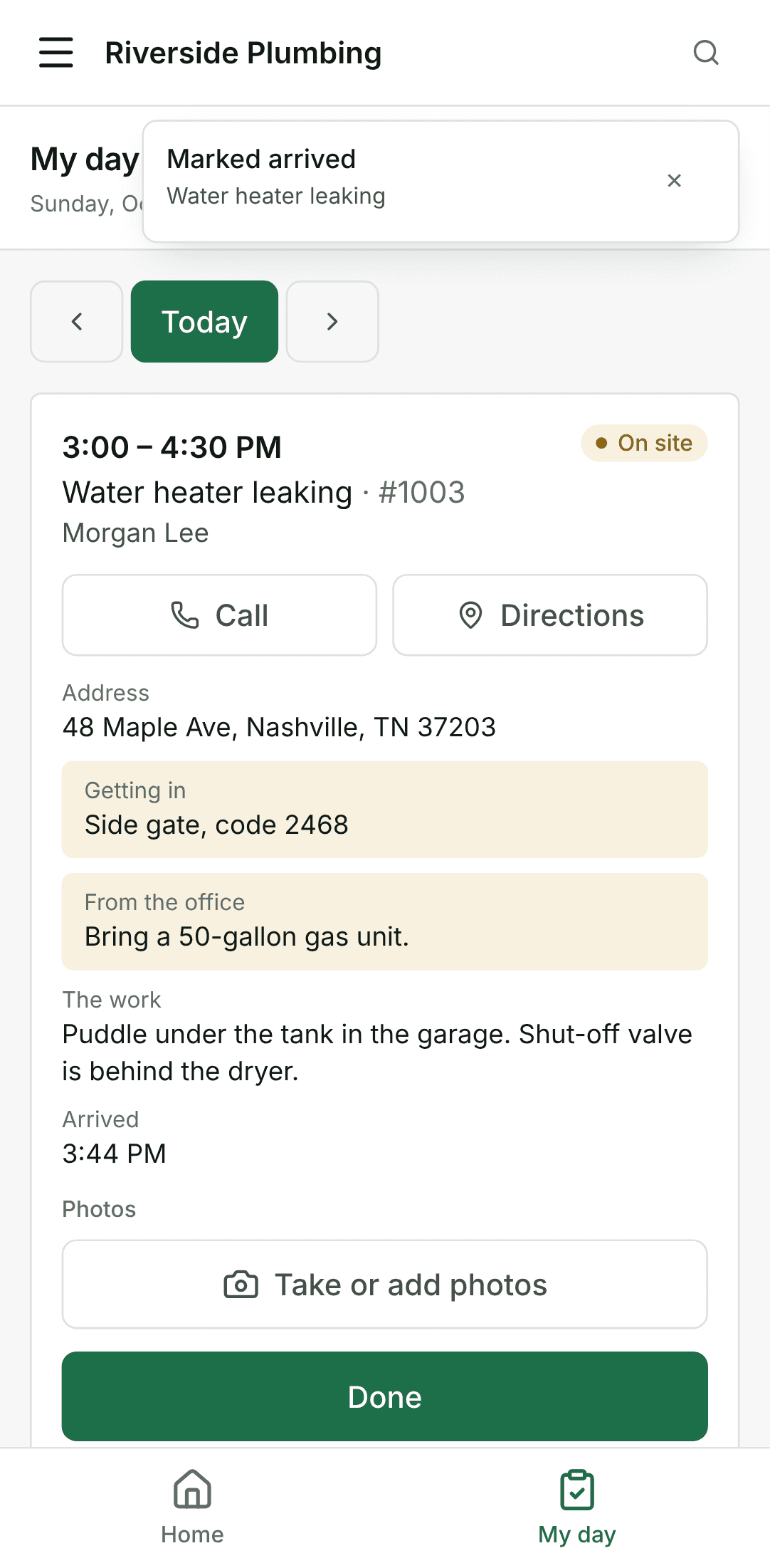
When you get there, tap Arrived. The visit shows On site, and the office sees it on the schedule.
4. Add a photo of the work
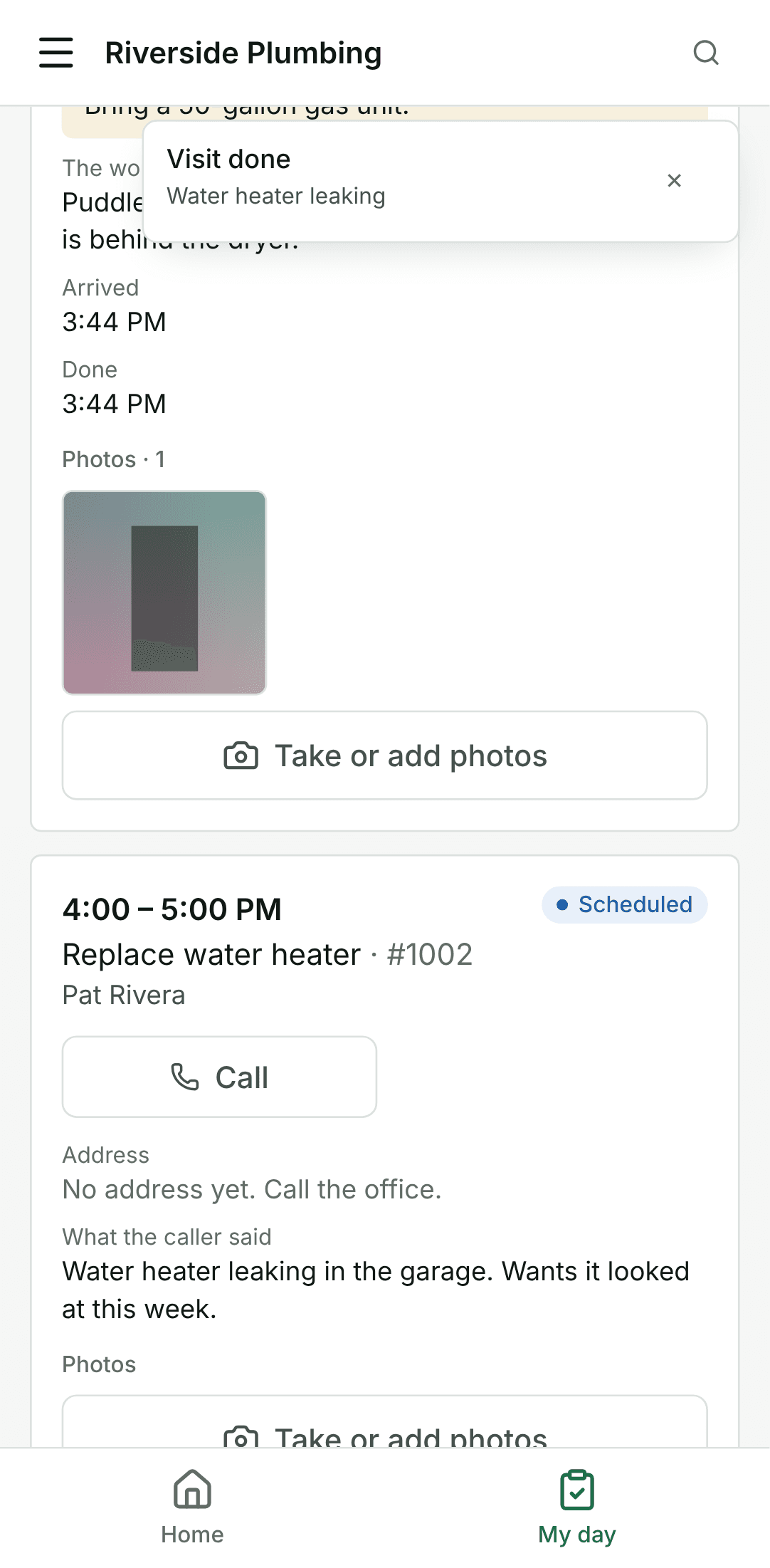
Tap Take or add photos and take a picture, or pick one you already took. It is kept with the job, for the office and the customer's record. Done does not wait for a photo.
5. Mark it done
When the work is finished, tap Done. The visit shows Done with the time, and the job is ready for the office to invoice.