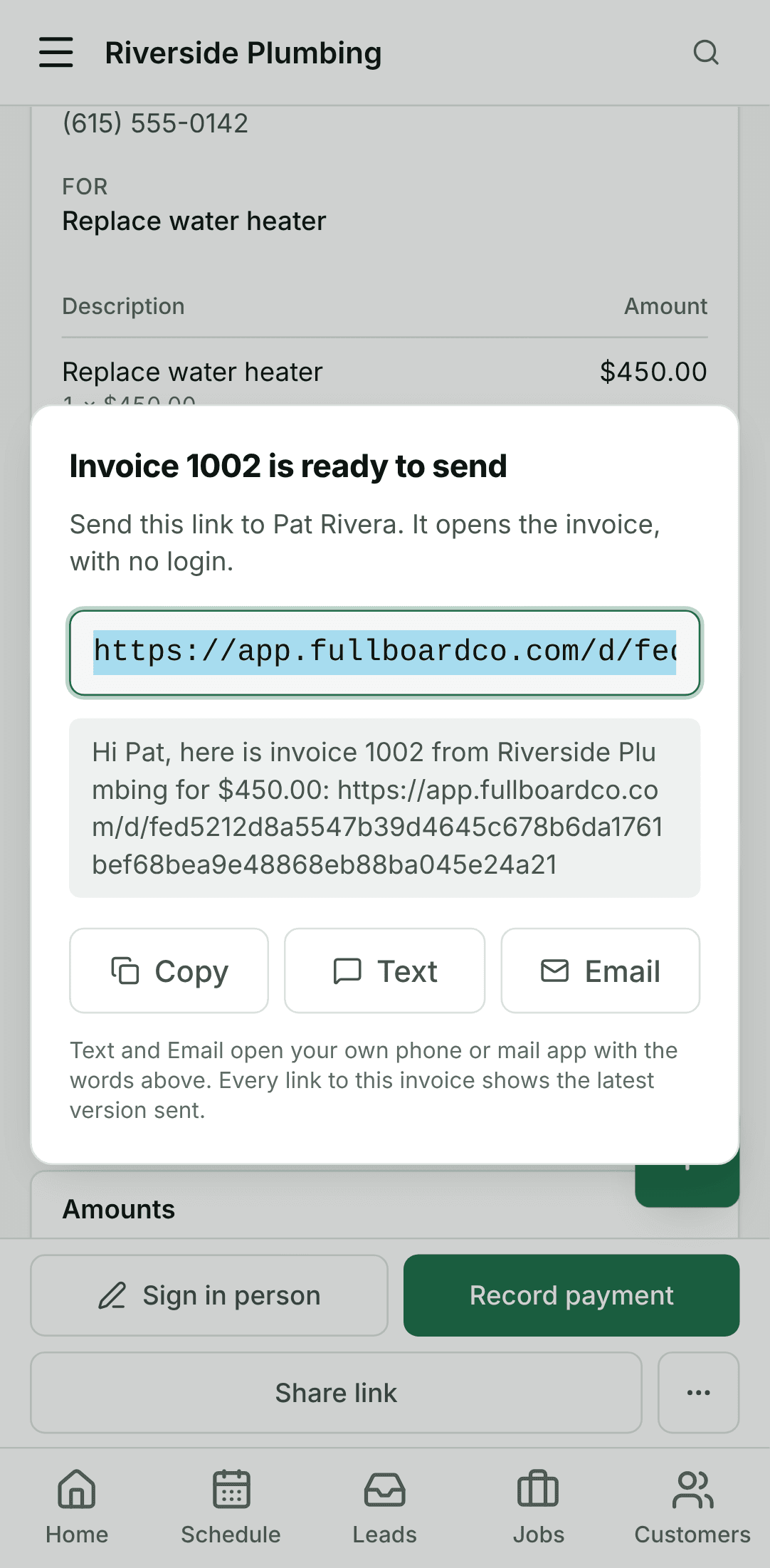
From a phone call to a sent invoice
Owner, Manager · 8 steps
Someone calls about a leaking water heater. You add them as a lead, make it a job, put a visit on the schedule, and send the invoice when the work is done. Every step is on your phone.
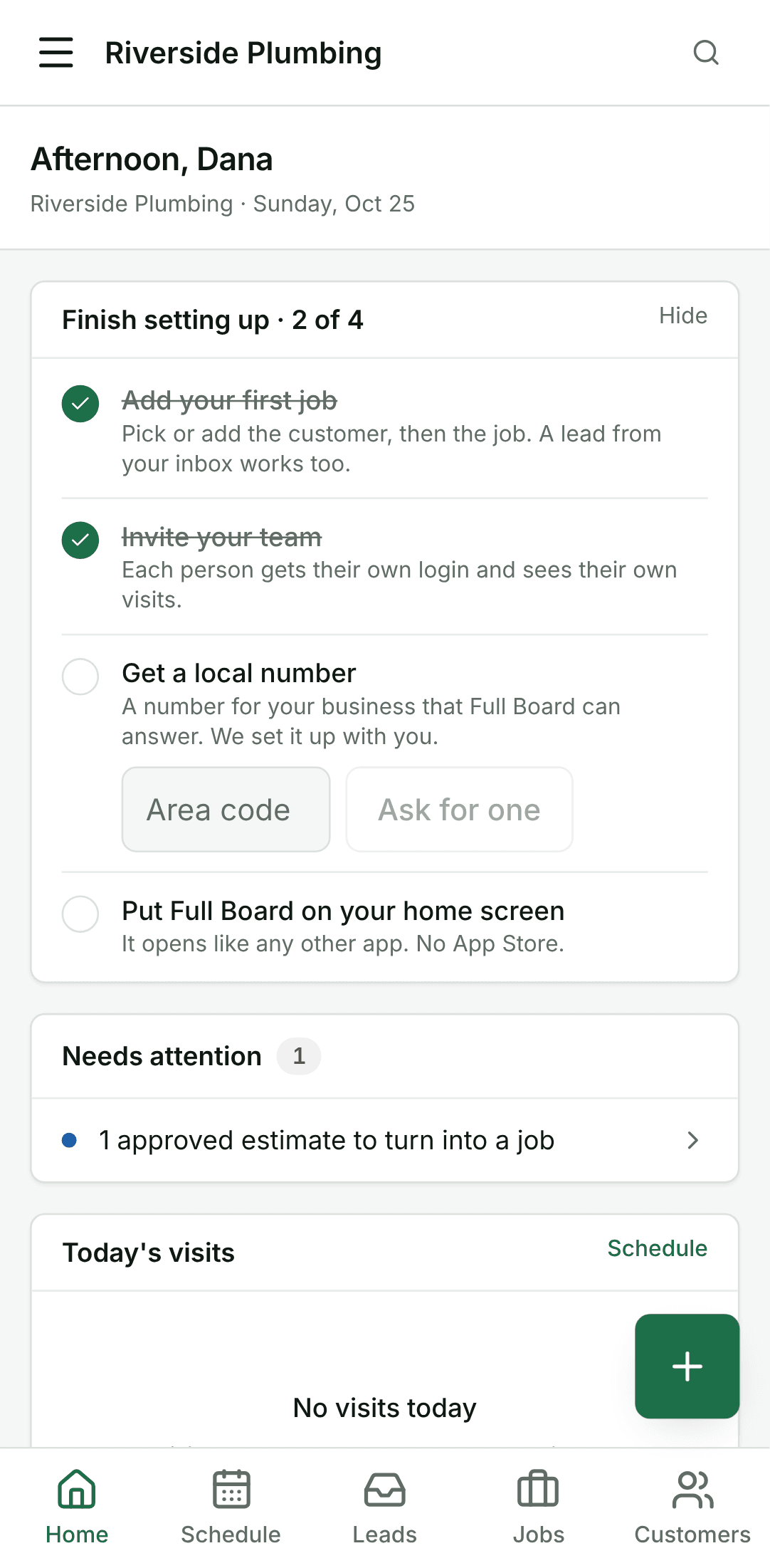
1. Sign in
Open the app and sign in with your email and password. You land on Home.
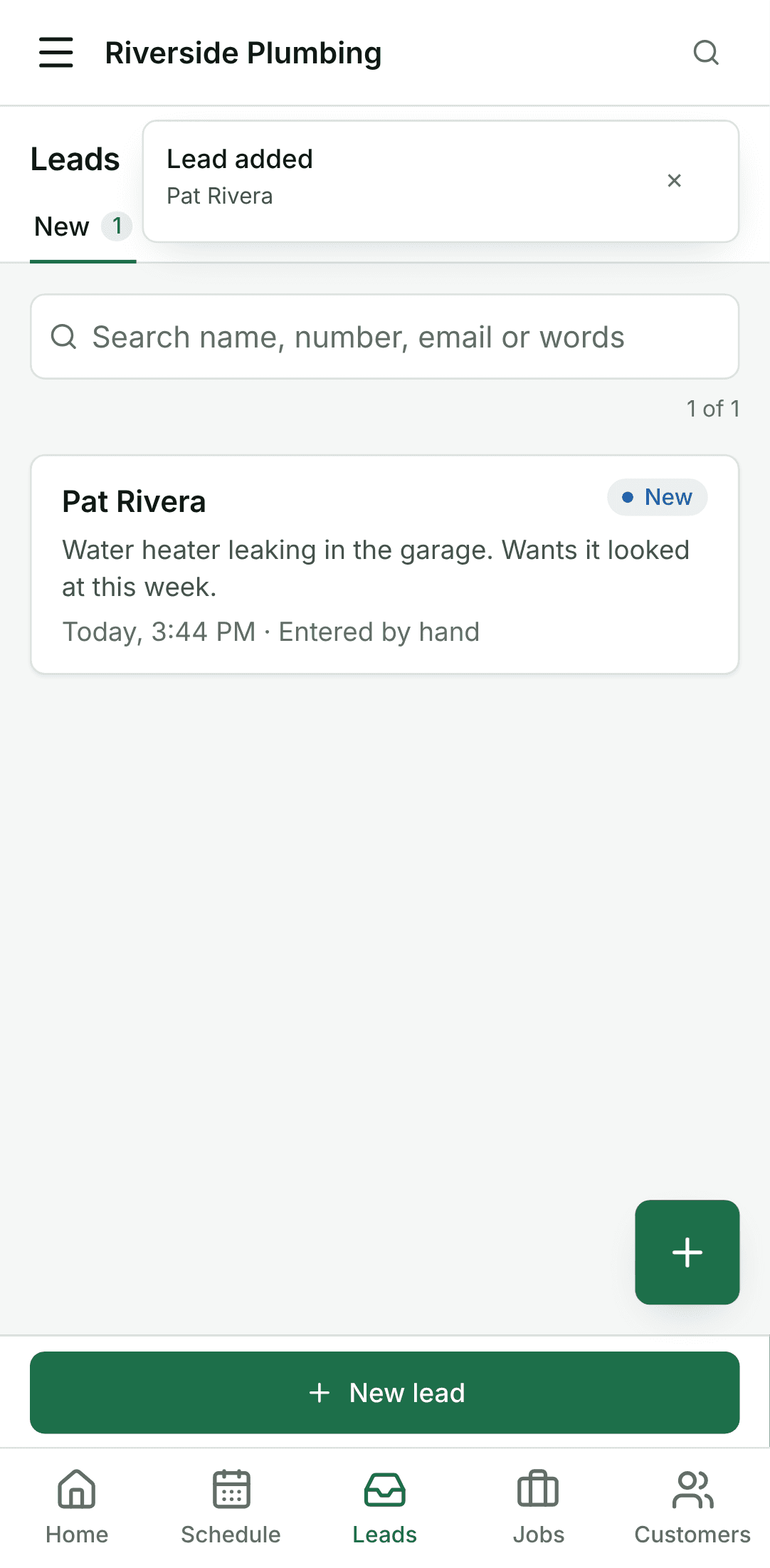
2. Add the caller as a lead
Go to Leads and tap New lead. Put in who called, their number and what they need, then tap Add lead. A phone number or an email is enough; everything else can wait.
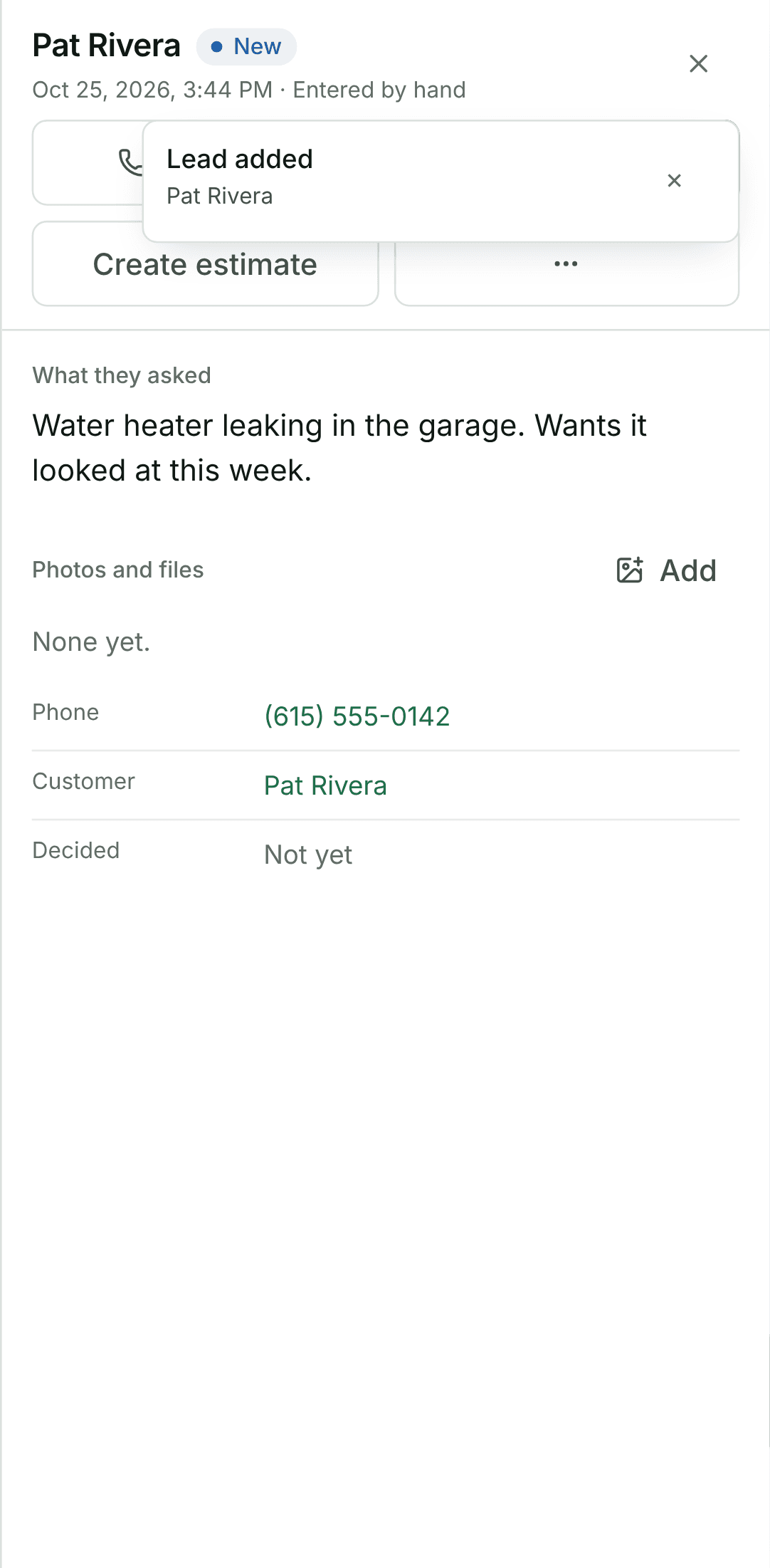
3. Open the lead
Tap the lead in the list. Its details open, with Create job at the top while it is still new.
4. Make it a job
Tap Create job. Give the job a short title, such as Replace water heater; the address and the caller come across from the lead. Tap Create job again. The job's page opens.
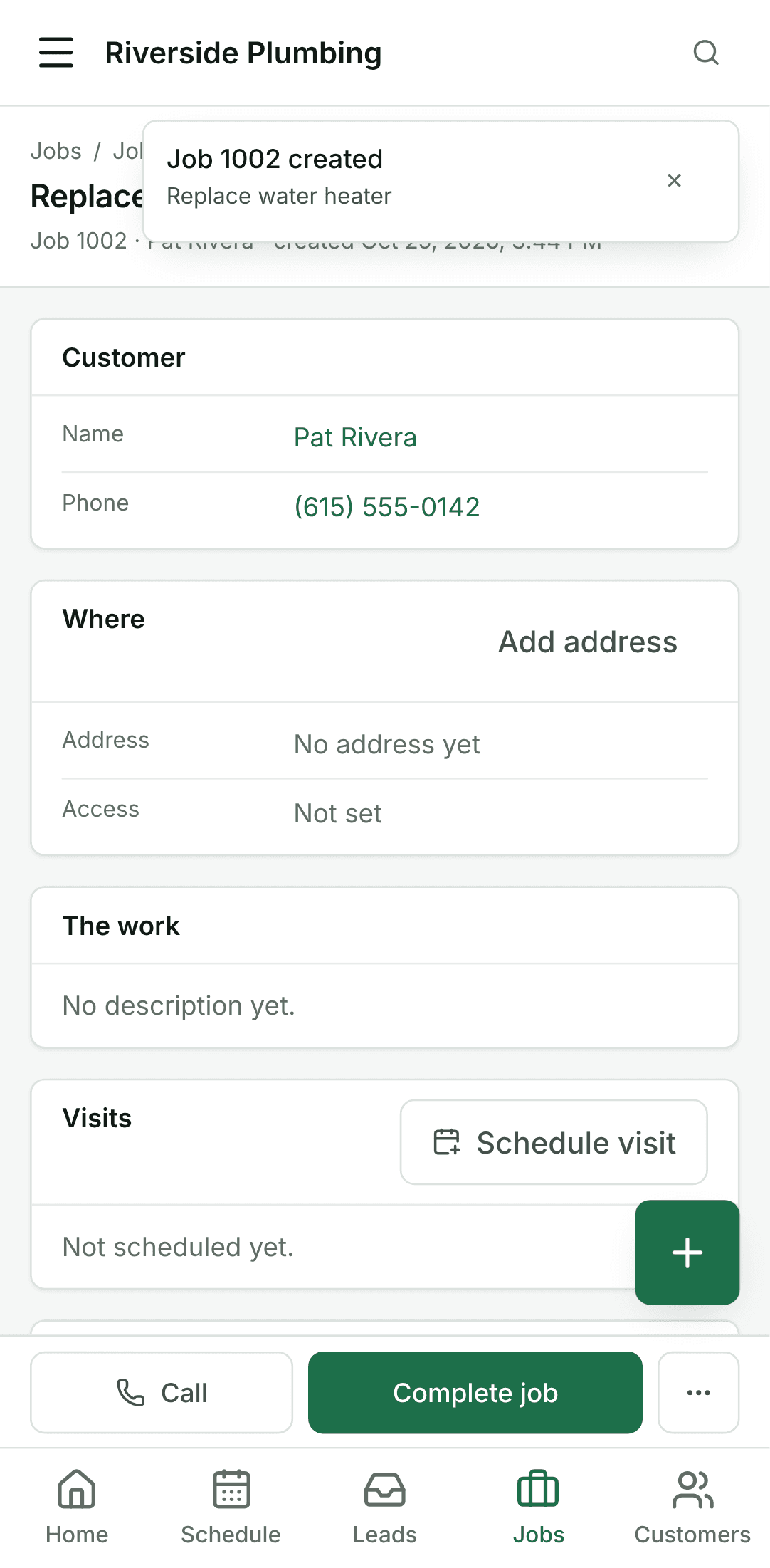
5. Put a visit on the schedule
On the job, tap Schedule visit. Pick the day and the start time, and who goes if you have technicians. Tap Schedule visit. It is on the schedule now, and on the job.
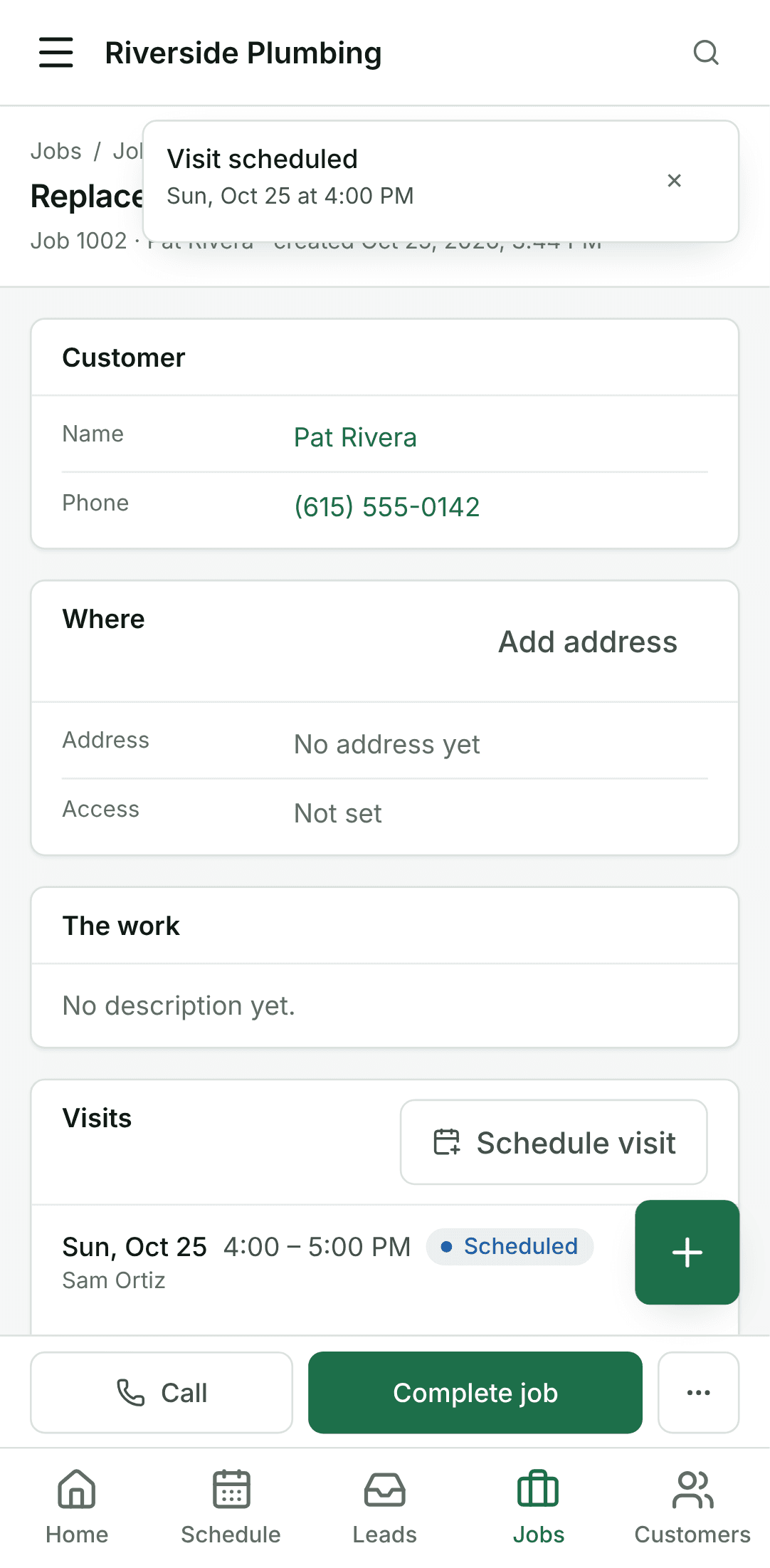
6. Start the invoice
When the work is done, open the job and tap Create invoice. It starts with one line, the job's title.
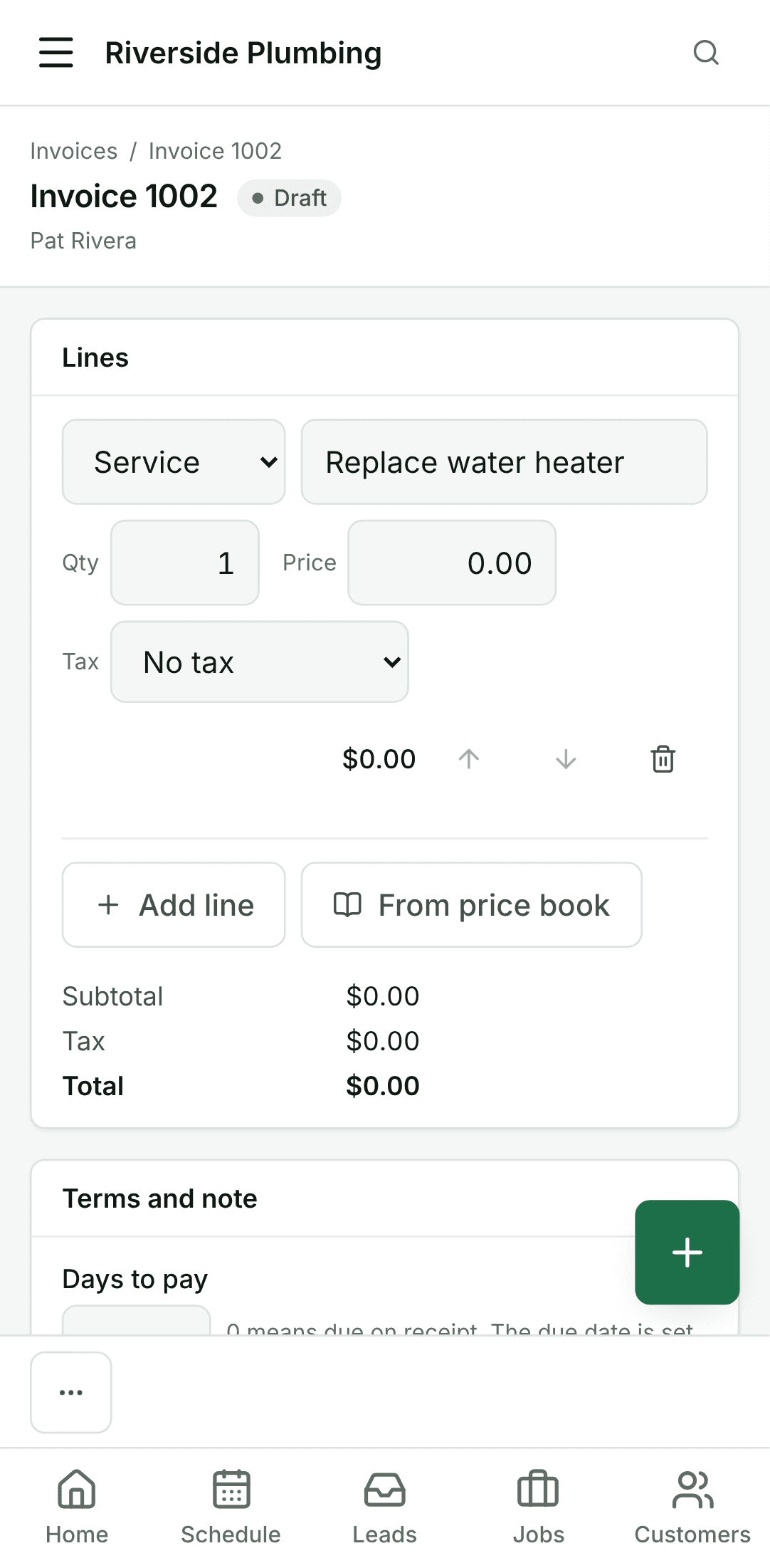
7. Price it
Put the price on the line. Add more lines with Add line if there were parts or extra work. The total updates as you type.
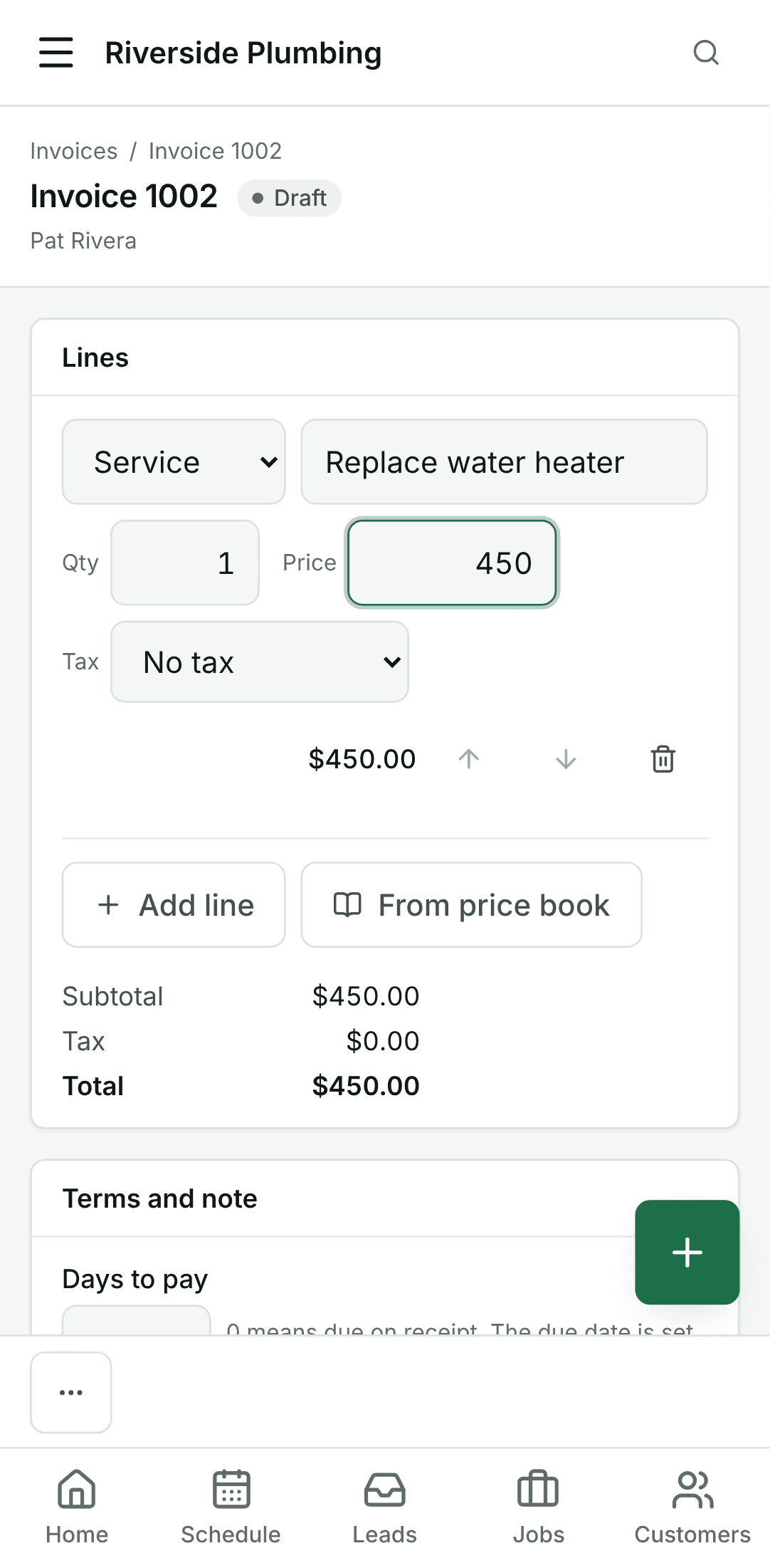
8. Send it
Tap Send. The invoice is final from here, and you get its link: Copy it, Text it to the customer, or Email it. The customer opens it on their phone and sees what they owe.