Adding a customer and finding them again
Owner, Manager, Member · 5 steps
Everyone who calls your agent becomes a customer by themselves. When someone called your own phone, or you met them on a job, add them by hand: their name and number, where the work is, and how to get in. Their page then gathers their calls, leads, jobs and invoices.
1. Sign in
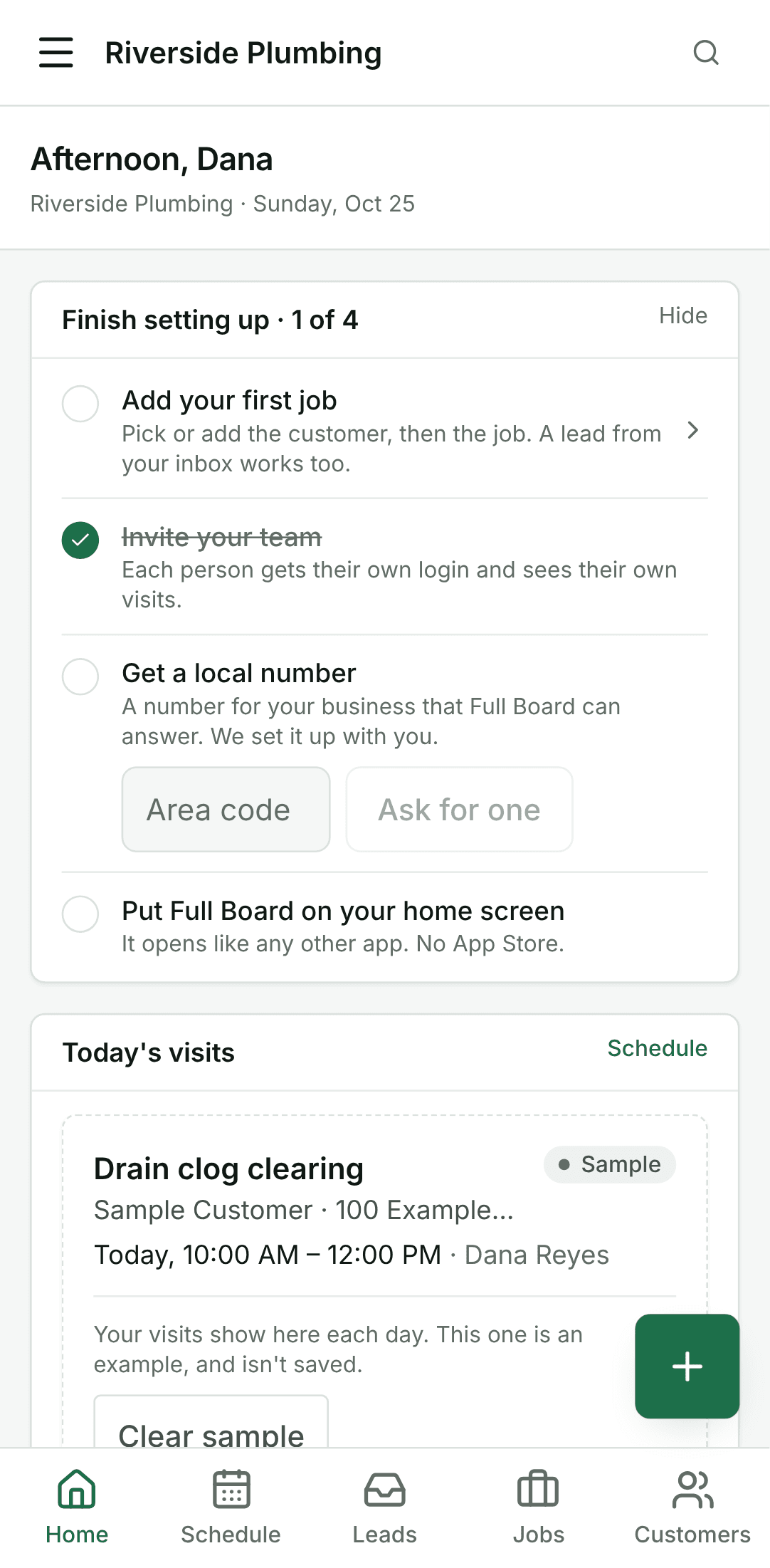
Open the app and sign in with your email and password. You land on Home.
2. Open Customers
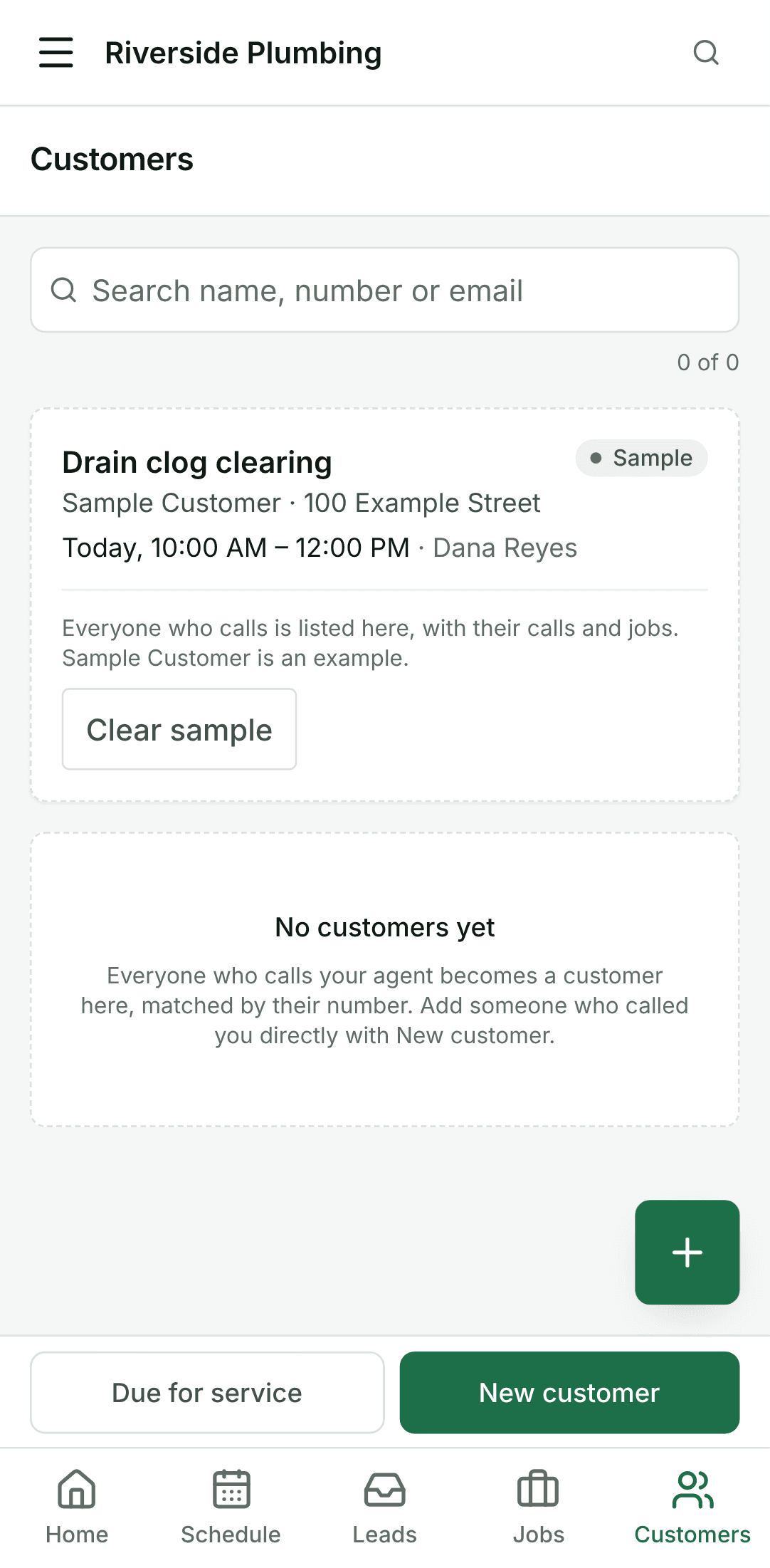
Open Customers from the menu. Everyone who has called, booked or sent a form is here, the most recent call first.
3. Add the customer
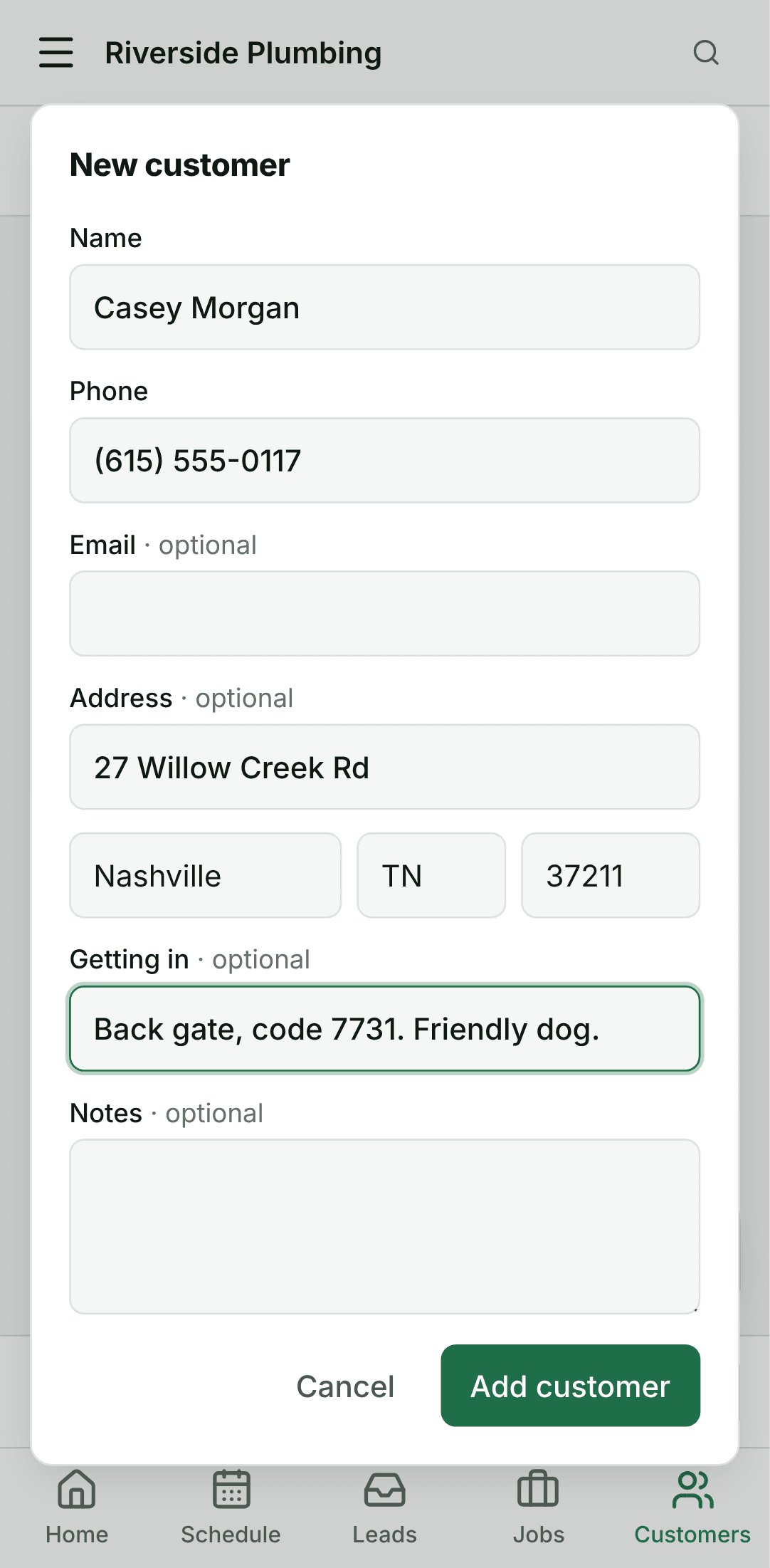
Tap New customer. Give their name and number; the address, Getting in (a gate code, where the lid is, the dog) and notes are optional, and the technician sees them on the day.
4. Their page
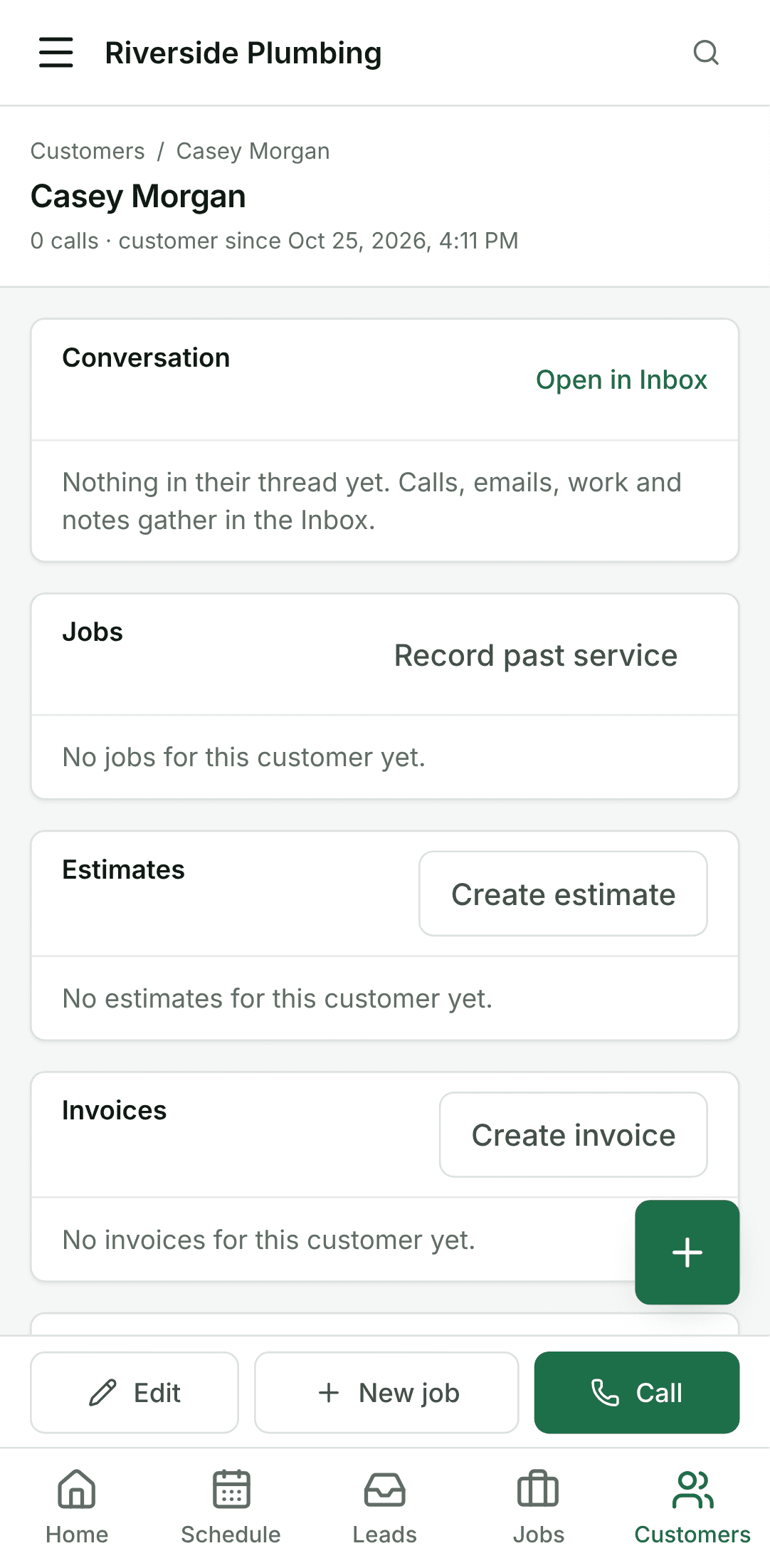
Tap Add customer. Their page opens, with Call, New job and Edit (along the bottom on a phone). Their jobs, estimates, invoices and calls gather here as they come; their details and addresses, with the way in, sit beside them (further down on a phone).
5. Find them again
Back in Customers, type part of a name, a number or an email in the search box, and tap the customer. Their number and name open in a panel with Call and Edit; the arrows at its top open their whole page.